
Tutorial
SimFluVar is freely available from the PRODUCT in SimFluVar homepage. You may download the compressed SimFluVar files for your operating systems. Detailed installation method for each operating system is as follows.
More Detail
3. Project Creation and Execution Figure1. Project Creation (Enter project name, constructor, sescription)
Figure2. Project Creation (Select input path)
Figure3. SimFluVar Computation Execution
Figure4. Project View
3.1. Executing Project Wizard
When selecting 'Project-Crete Project' from the menu, Project Creation Wizard shown below gets executed.
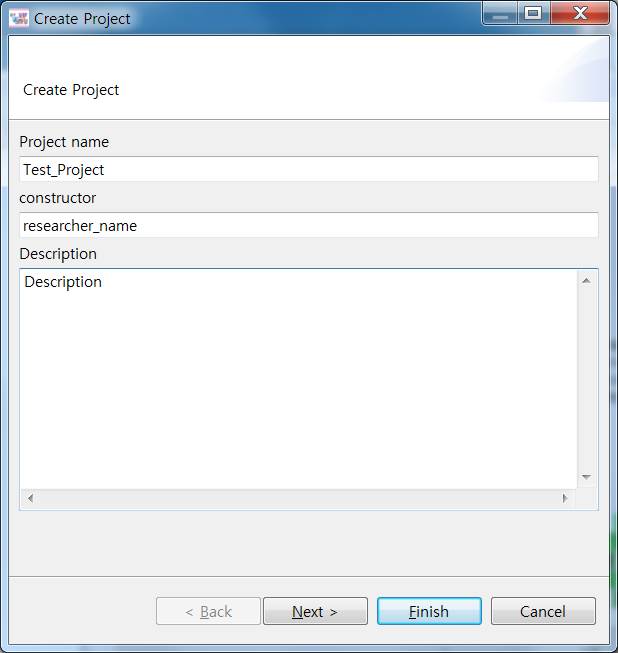
In the above form, enter project name, author, and description and press the Next button to generate output similar to below; it should be noted that having a gap within the project name or leaving any of the slots for author and description blank, the project creation does not get processed at the final stage.
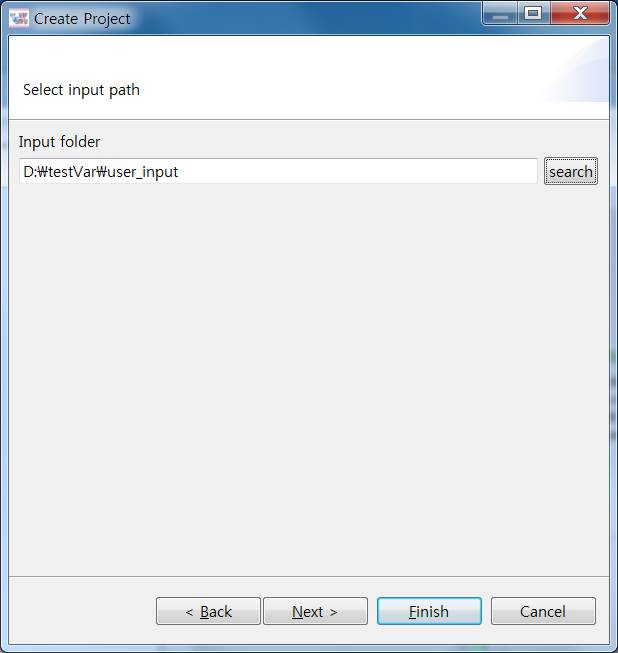
Select the folder containing the input file from above and press the Next button to receive an output file as shown below. Input data need to make up a pair of files (2 total); refer to section 1, "Program Introduction" for more information.
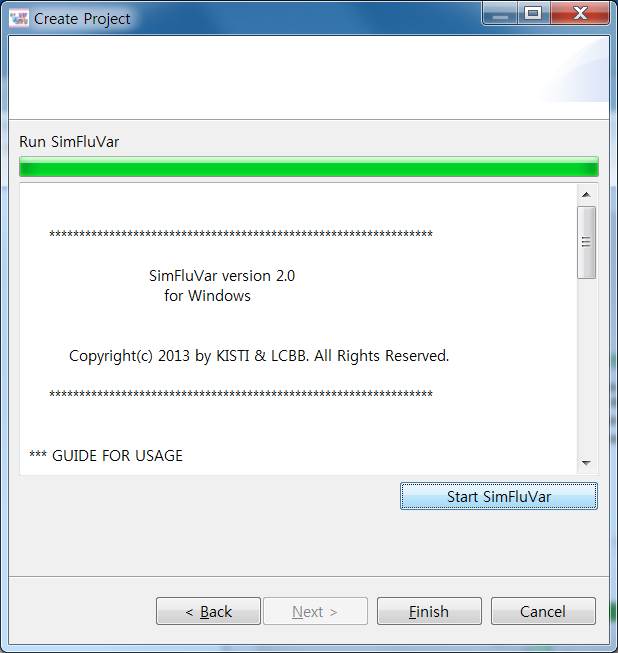
Selecting 'Start SimFluVar' button in the above window will start SimFluVar analysis, and results are displayed in the window upon completion. Next, press the 'Finish' button to complete the project creation.
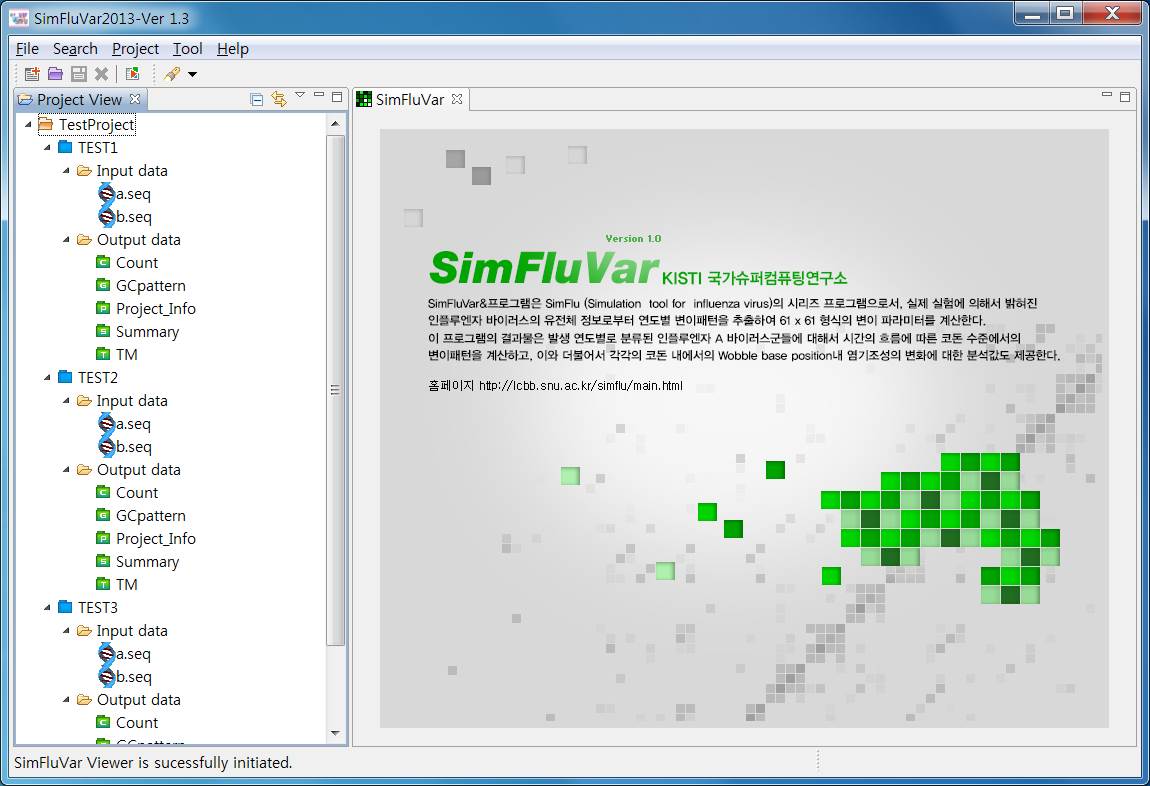
In the 'Project View' section on the left hand side of the project screen will emerge a project-related tree, which is mainly divided into 'Input Data' and 'Output Data'. Input Data consists of the input file, while the Output data folder contains the results of Counting matrix, GCPattern, Project info, Summary, and TM (Transition Matrix).