
Tutorial
SimFluVar is freely available from the PRODUCT in SimFluVar homepage. You may download the compressed SimFluVar files for your operating systems. Detailed installation method for each operating system is as follows.
More Detail
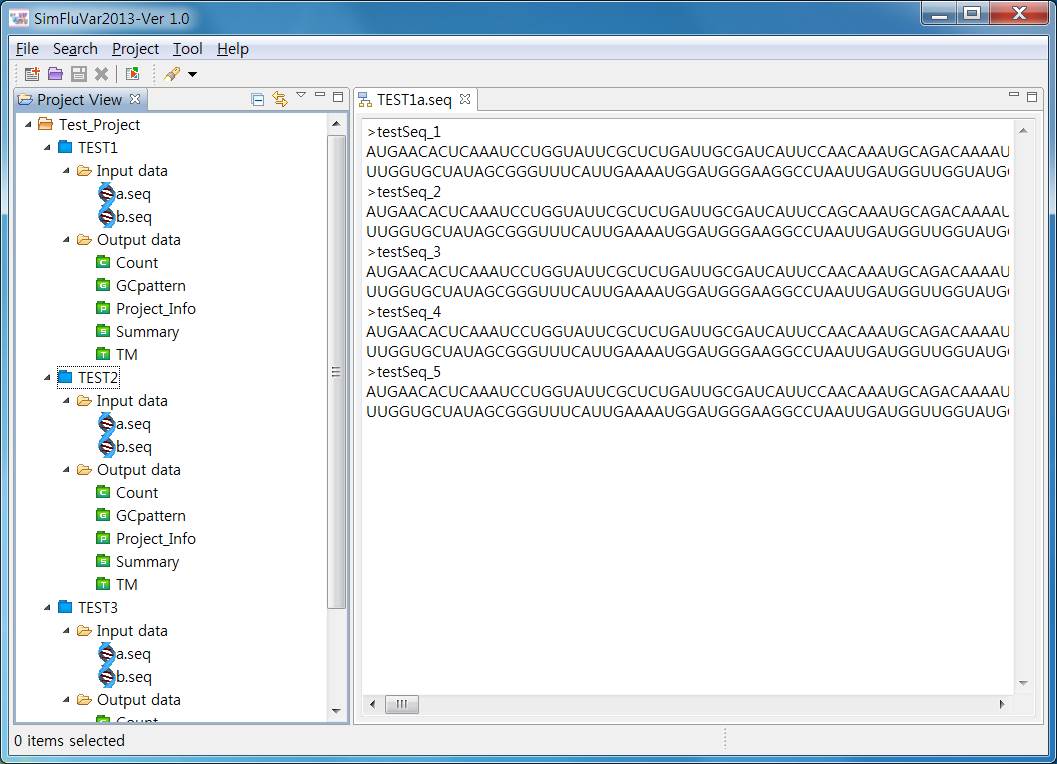
4. Checking Results Figure1. Input file output window
Figure2. Counting Matrix
Figure3. Heat map of Counting Matrx
Figure4. Setting up Color map
Figure5. Save Heat map file
Figure6. Output GC(%) contents pattern
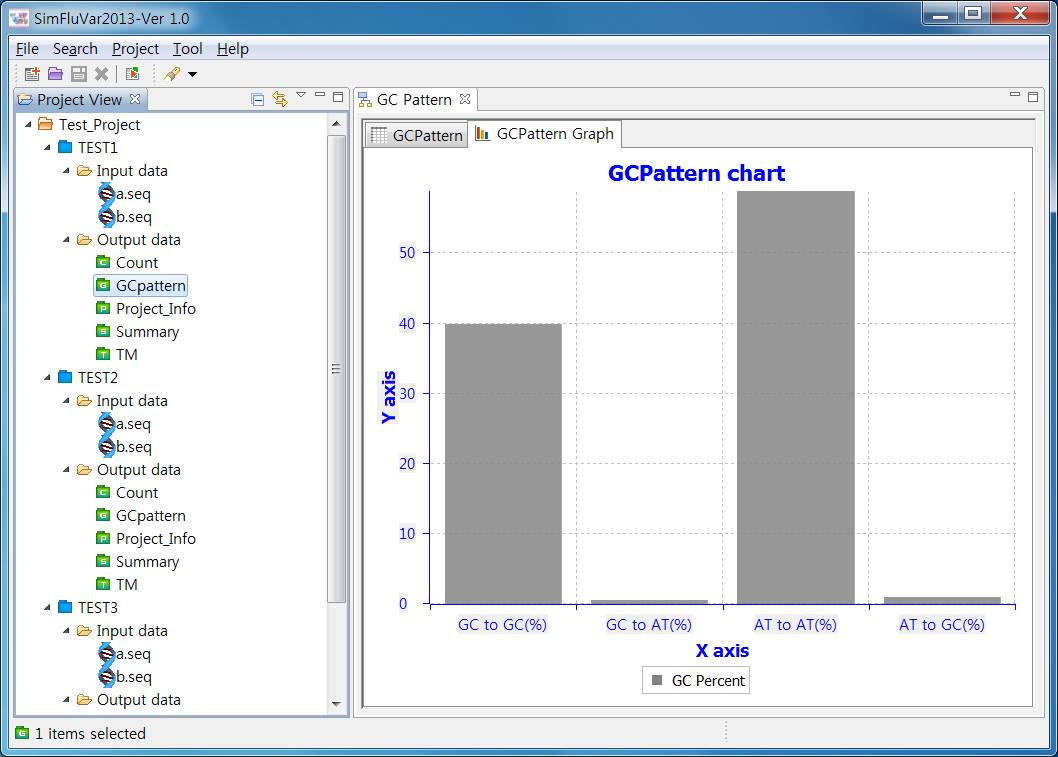
Figure7. Output GC(%) contents graph
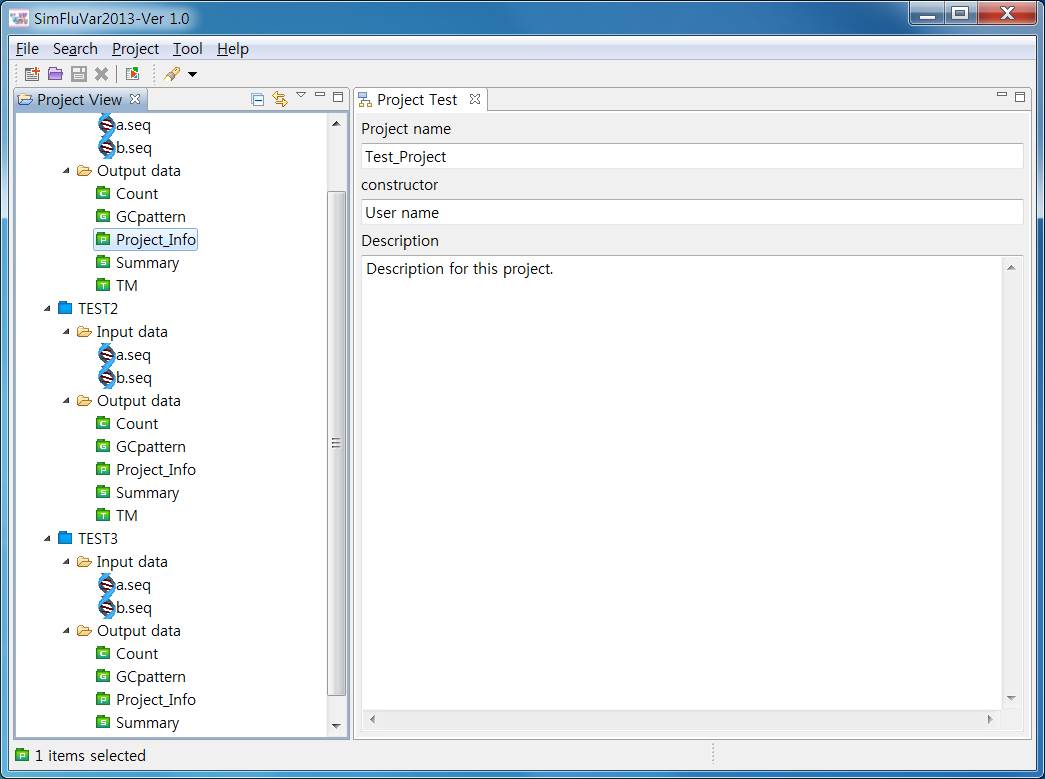
Figure8. Project Info view
Figure9. Input and output file information related project
Figure10. Calculation reuslt of transition matrix (TM)
Figure11. View of transition matrix result
4.1. Input File Output Window
Upon creation of a new project, a node is generated on the tree on the left hand side that indicates input files and output files, where the Input Data folder stores input files. Double-clicking on the DNA-shaped icon will produce a window illustrating input sequence as follows.
4.2. Counting matrix
The 'Count' folder among the 5 folders within Output Data folder outputs Counting matrix data. Double-clicking on this folder will generate a screen as shown below; codon in each row is from the initial year, while codon in each column is from the final year.

Counting Matrix window consists mainly of 2 tabs: a tab that outputs Counting matrix table in table format, and a tab that outputs graphs in 'Heat map' format. Selecting Heat map tab will generate output as follows.
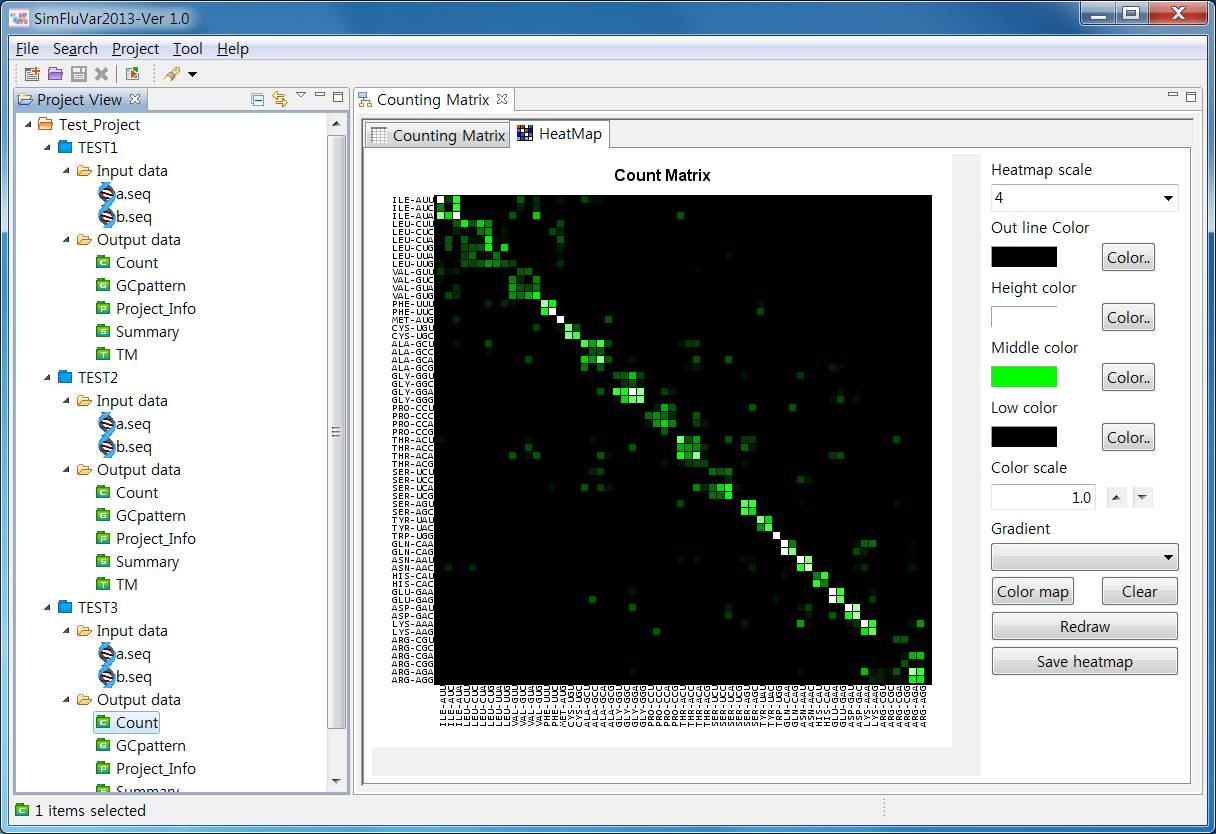
Heat map view at the top outputs matrix-format data in graph format; utilizing the control box on the right hand side enables users to change shape and color of the Heat map
Using 'Heat map scale' function allows users to enlarge or reduce the Heat Map; a high value representing enlarging of the image, while a low value signifies reducing. Select an appropriate value and press the Redraw button to apply the function.
Outline Color function assigns colors to the outline of the little rectangle blocks in Heat map view; High, Middle, Low colors determine how colors are displayed within the Heat map matrix. Basically, the colors in Heat map are determined going from High to Middle to Low, and by this value by pressing the Color button on the right hand side, you can change the color. After the change has been made, press the Redraw button to apply.
Color scale sets up the scale of color distribution. The closer this value is to 0, the clearer the distinction is between blocks; therefore, to effectively view the subtle distinction between blocks, you can lower this value. Color scale should be set with a value between 0 and 1 and does not support values outside of this range. After the desired scale has been selected, press the Redraw button to apply
Gradient function is grouped combination of preferred values of High, Middle, Low group; select an appropriate combination and press the Redraw button to apply.

Pressing the Color map button will produce a dialogue box as shown below.
In the Color map window, 'Color item' represents the color of block being output; the 'Color key' signifies the RGB value of the Color; 'Count' represents number of current values matched with the Color; 'Values' signifies actual value of the applicable cell.
In Color map window, designated Color can be changed to different values; in other words, double-clicking on the color box at the top of the Color column, a dialogue will appear that enables users to select the colors. Once new colors have been designating in this box, the selected colors will be changed to the designated ones, which will be reflected in Heat map accordingly. Pressing the Clear button to the right of the Color map button will erase all random selections of colors.
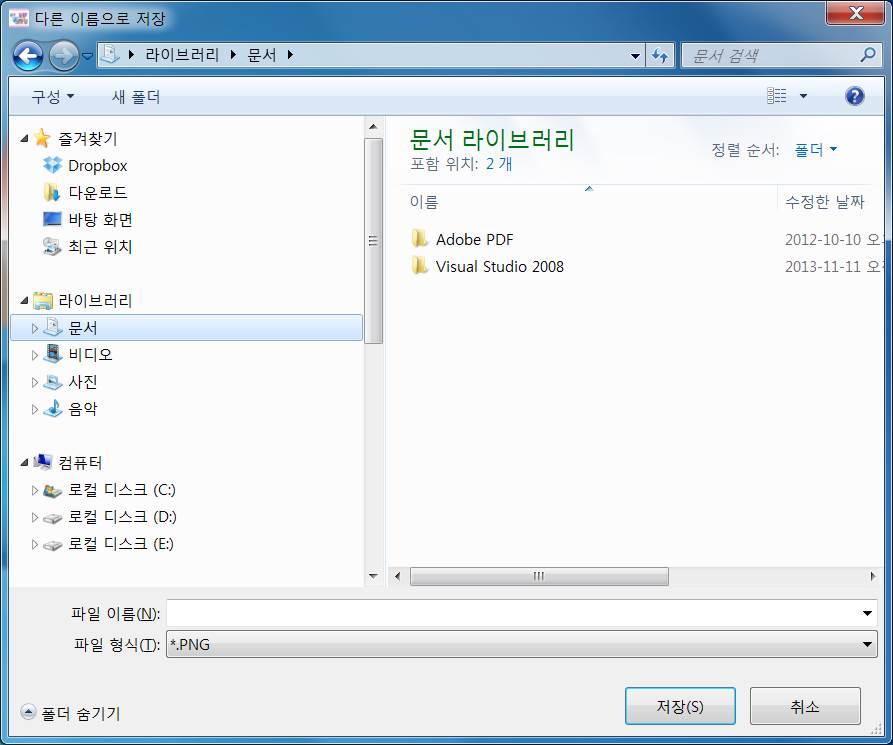
Lastly, save heat map is a function allows users to convert the heat mat matrix on the screen into a specific image file and store it. Pressing the button will produce a dialogue box shown below.
On this screen, you can designate the file format and the file name you wish to use; then, press the Save button to save the designated file; in the current version, 10 file formats are supported including PNG, JPG, BMP, GIF, and PDF.
4.3. GC Pattern matrix
Selecting GCPattern will produce output as shown below. GCPattern calculates the change in base composition at each codon's wobble codon position and presents it by amino acids encrypted by individual codons. All values are indicated in percentage against whole base, and data counted for proposed percentage will be provided at the end of the percentage. Furthermore, the 'Target file summary' at the bottom is a value calculated holistically instead of dividing initial year's base composition value by amino acids; researchers may obtain and use desired types of results/values.
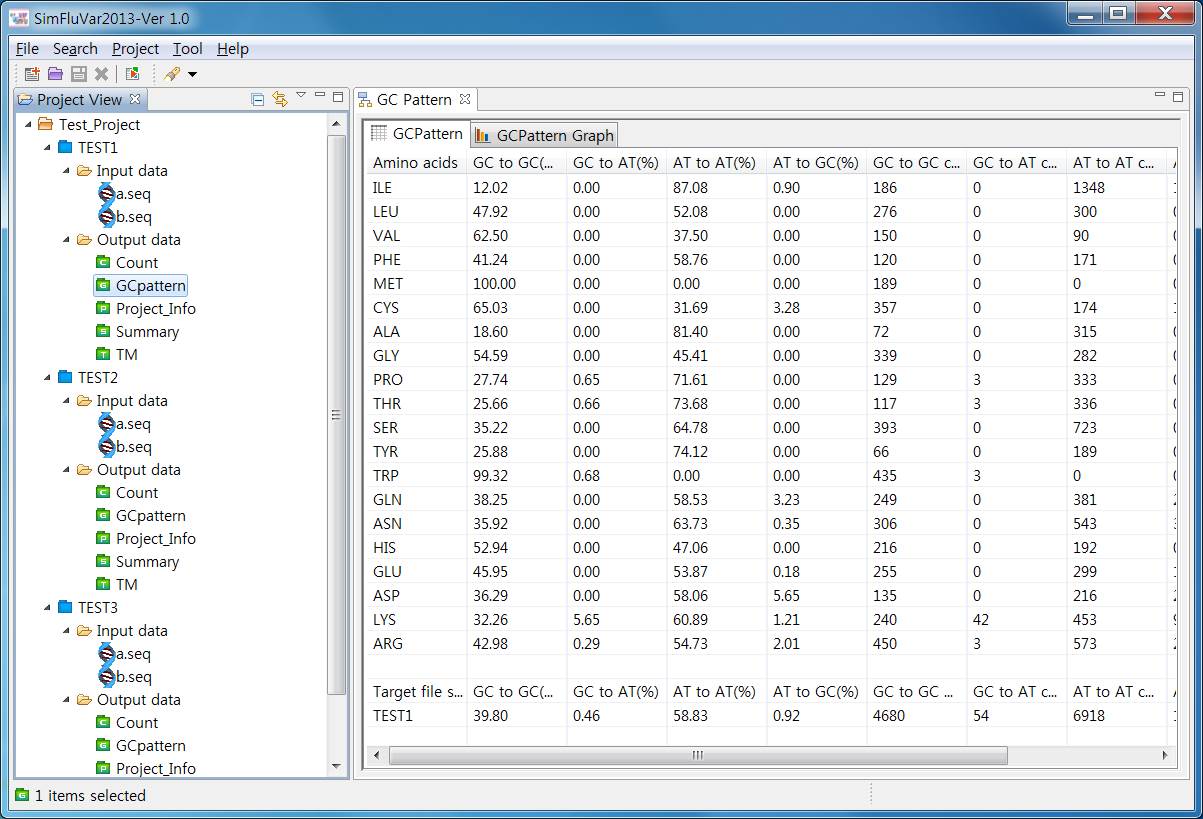
GCPattern view is divided into two views: one that outputs GCPattern matrix in table format and one that outputs the matrix Chart format. The above screenshot is an example of an output in table-format. Selecting GCPattern Graph tab will generate a screen as shown below, allowing users to grasp the overall composition (GC in %) at a glance.
4.4. Project Info
Project Info view outputs information about the project, double-clicking on Project info node will output the results as follows.
4.5. Summary
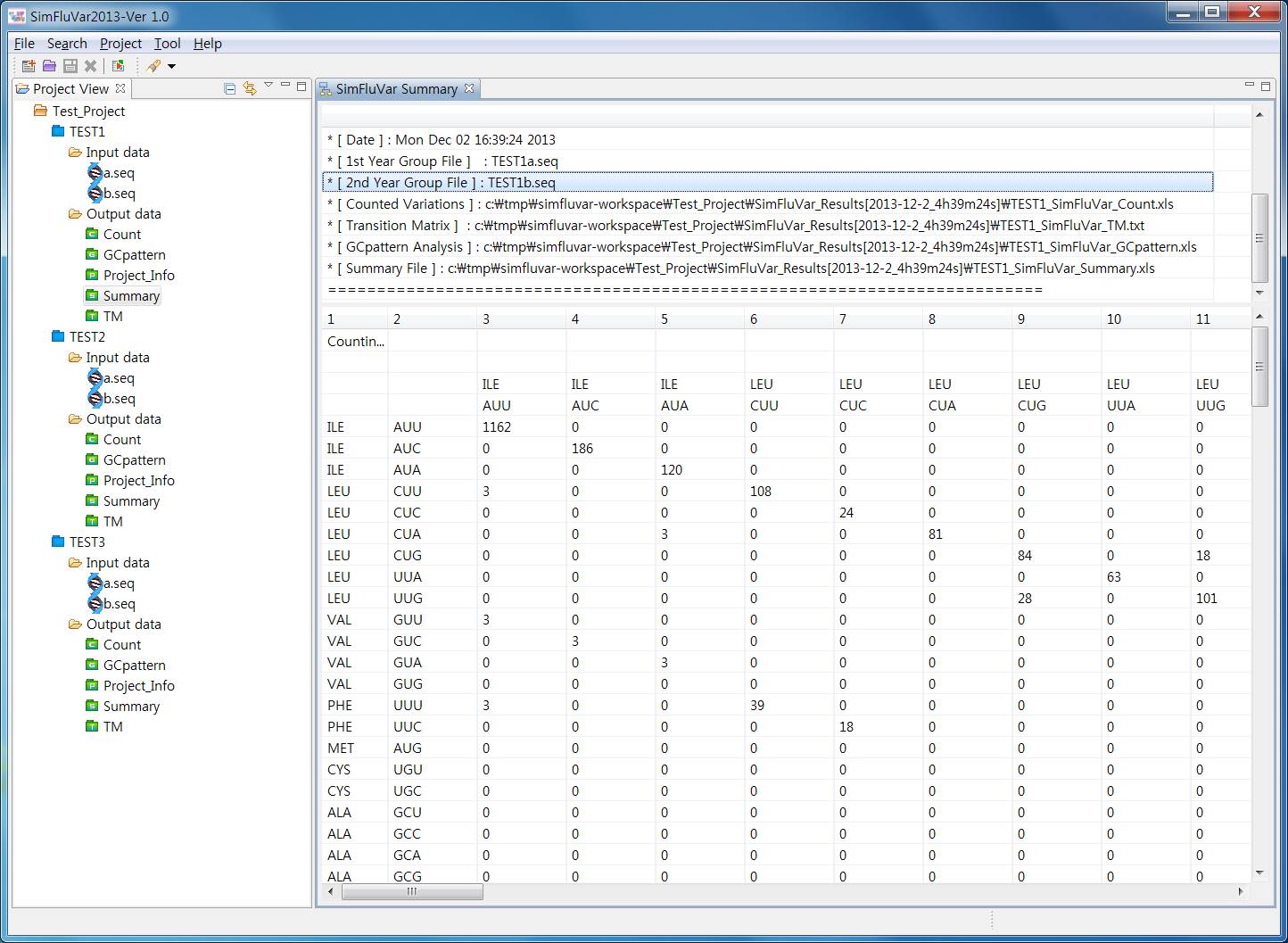
Outputting the Summary node will generate a Summary view as shown below. Summary View outputs the overall results of SimFluVar.
4.6. TM Matrix view
Double-click on the TM node to output Transition Matrix (TM) view as shown below. TM is a conversion of previous modification value within Counting Matrix to Markov model's Transition matrix format; the roles of matrix's rows and columns are the same as those in Count matrix. The values output from this transition matrix can be utilized as user parameters in the SimFlu-based computer simulation process.
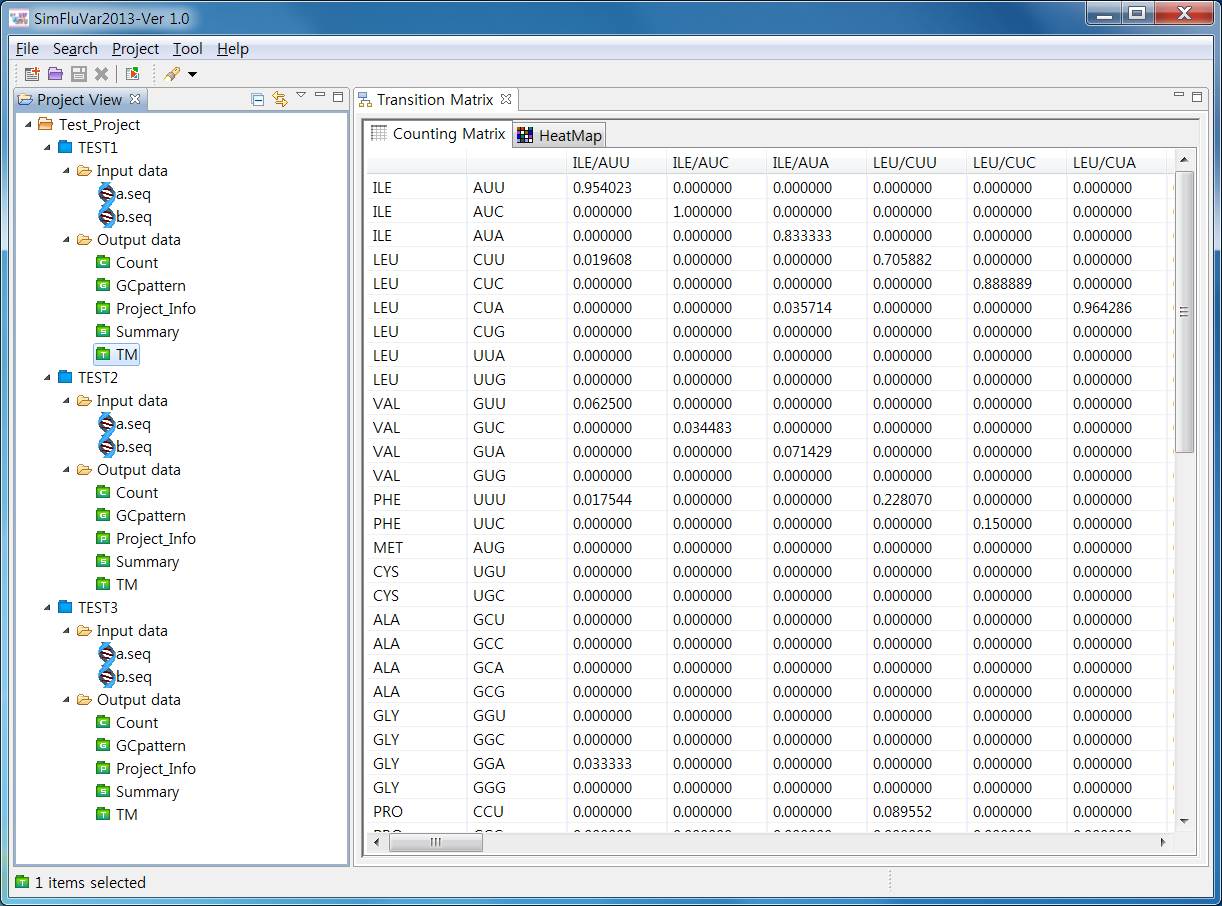
Similar to Count matrix view, TM view also consists of two views; one outputs the matrix in table format, while the other outputs it in Heat map format. Selecting Heat map tab will generate an output as shown as below, and the basic operation is the same as Heat map as described in Count matrix view section.
