|
Command file mode
Although the ‘Interactive mode’ is convenient for the beginner, it may not be suitable for advanced users due to its long setup time. For the advanced users who have large data size and short analysis time, SimFlu recommands the ‘Command file mode’.
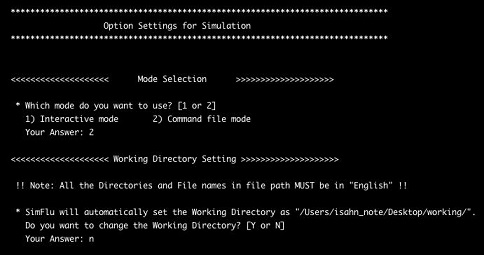
- Mode Selection: Command file mode -
If you want to use the ‘Command file mode’, choose the number 2 in the "Mode Selection" part. After choosing the ‘Command file mode’ in the first step, SimFlu automatically searches the parent folder of SimFlu.exe file located in the subfolder [exe], and will ask you whether to use it as a working directory or not. If you want to use other directory as your working directory, type the ‘yes’ in the first question and write the exact file path to the preferred working directory folder. SimFlu will check the existence of your working directory, and move to the next step if it is normally exist in your PC.
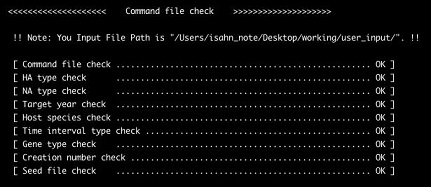
- Checking list of command file mode -
Once you setup your working directory, SimFlu searches the command file (*.cmd) in the subfolder [user_input] in your working directory. If your command file is normally exist, SimFlu will start to simulate automatically using the working conditions described in your command file. It evaluates the usabilities of defined conditions in command file, and finally starts to simulate if all the target parameters are valid. Note that there must be only one command file (*.cmd) in your input folder. Detailed setting indicators in the command file are as follows.
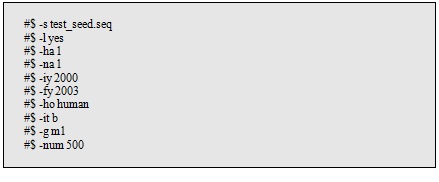
- Example of setting indicators -
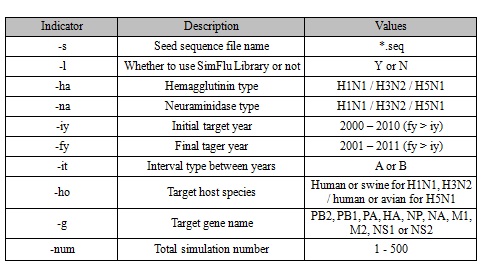
In the command file, all the lines which contain the setting indicators must be started with ‘#$’, and an indicator and its value is followed. Setting indicators and their values are described in the next Table.
Table. Setting indicators and their preferred values in SimFlu command file
|