|
How to Install
SimFlu is freely available from the ‘PRODUCT’ in SimFlu homepage. You may download the compressed SimFlu files for your operating systems. Detailed installation method for each operating system is as follows.
If your operating system is Windows XP or 7, you can download a zip-file named ‘SimFlu.zip’, and then, extract it to a preferred folder in your computer. Because SimFlu is developed using C++ language, the full file path of your folder must be in English. The SimFlu zip-file contains five different subfolders, including [exe], [lib], [examples], [manual] and [user_input]. The executable file for SimFlu, ‘SimFlu.exe’, is located in [exe], and the library files for simulation can be found in [lib]. In [lib] folder, you can find another subfolder named [v_1]. The integer after the prefix ‘v_’ is the version number for SimFlu library, so, in this case, the version number is ‘1’. During the simulations, SimFlu automatically finds the latest version of the library by comparing the version number of this folder, and select the largest number to use the latest version of library. If you want to move the SimFlu.exe from its original folder to the other place, you must create a ‘shortcut’ of SimFlu.exe file first, and then, move or copy it to your preferred location. SimFlu also provided a designed icon of creataed shortcut for Windows named ‘SimFlu_icon.ico’ in [manual] folder.

- Shortcut icon for SimFlu
The PDF file of this manual document is also located in [manual], and [user_input] is a default folder where SimFlu searchs your input files. Several sample files are located in that folder for the beginner. If you assign other directory as a working directory in 'Working Directory Setting' step, SimFlu will try to find your input files in ‘user_input’ folder within your working directory.
In [examples] folder, you can see the three different subfolders, such as [Sample_command_file], [Sample_seed_sequence] and [Sample_user_parameter], which contain some example files for the beginners. In [Sample_command_file], you may find a sample command file named ‘test_command.cmd’, which contains sample command options with their values. The ‘test_seed.seq’ file in [Sample_seed_sequence] folder is a sample seed sequence of hemaggutinin gene of influenza A virus, and 10 different text files in [Sample_user_parameter] is the sample user parameter files.
- Linux or Mac OS X machine
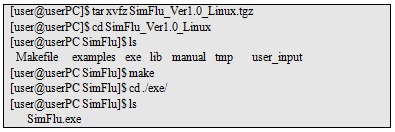
If the operating system of your PC is Linux (Red Hat-based system) or Mac OS X (version 10 or upper), download a tgz-file, and extract it to the preferred location. As for the Linux system, you can use the ‘tar’ command with specific options, and type the ‘make’ command to create an executive file of SimFlu using Makefile. More detailed method is described as below.
SimFlu contains six different subfolders, such as [exe], [lib], [examples], [manual], [tmp] and [user_input], and an executable file, “SimFlu.exe (for Linux)”, or “SimFlu (for Mac)”, can be found in [exe] after compiling using Makefile. Due to the simulation process is dependent on the library files in [lib], you must execute the SimFlu program within the [exe] folder. So, if you want to move the SimFlu.exe file from the original extracted folder to the different one in Mac machine, you must create a ‘shortcut’ and then move or copy it to the preferred location. We also provided a shortcut icon for Mac named ‘SimFlu_Mac_icon.bmp’ in [manual]. Sometimes, SimFlu may not work on Linux system because of the absence of the gcc compiler. In that case, you can install the latest version of gcc by using yum command as follow.
In Fedora Linux, you may see an error message for the absence of C++ library in your PC. In this case, go to the “add/remove softwares” in Linux setting options, and search the “libstd” in the searching window to find “Compatibility standard C++ libraries” package, and then, just install it.
|